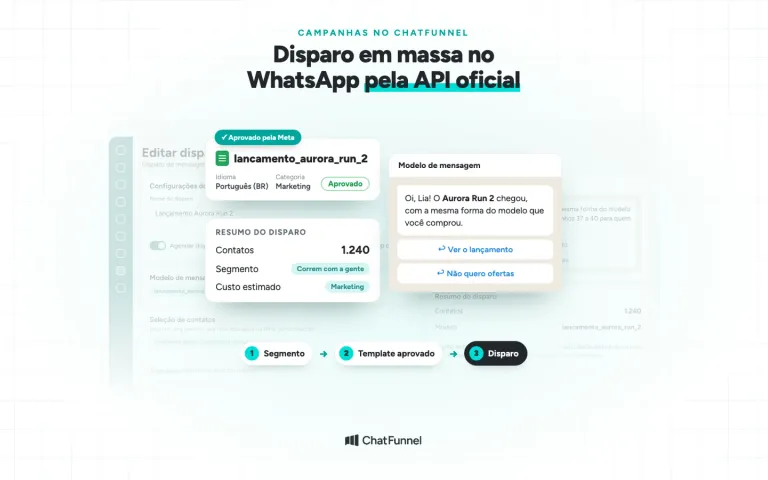


To request approval of a WhatsApp template for the official API, define the message's purpose, choose the matching category and submit the text with examples for its variables. Meta reviews the content and reports its decision within 24 hours. If it is rejected, the stated reason guides correction or an appeal. No ready-made phrase guarantees approval.
A store may need to announce that an order is out for delivery or invite someone to complete a cart. These messages have different purposes, even if both include a button to the website. That difference must be reflected in the template registration and the flow that uses it.
In ChatFunnel, Intelligence helps prepare flows and templates from a conversational request, and official WhatsApp campaigns use Meta-approved templates. The platform organizes this work; Meta still makes the decision on each template.
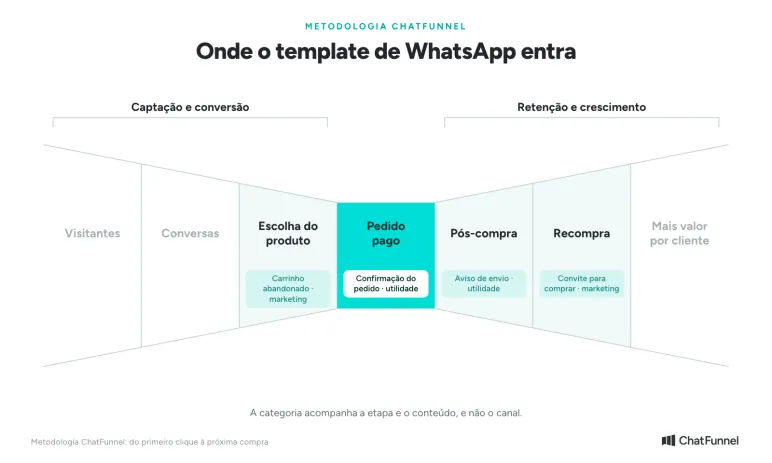
In the ChatFunnel Methodology, a template appears at four stages of the journey, with the category changing accordingly. In Product selection, it follows up on an abandoned cart, which Meta treats as marketing. In Paid order, it confirms the purchase as utility. In Post-purchase, it announces shipment, also as utility. In Repeat purchase, it invites another purchase, again as marketing.
Confirm whether the conversation requires a template
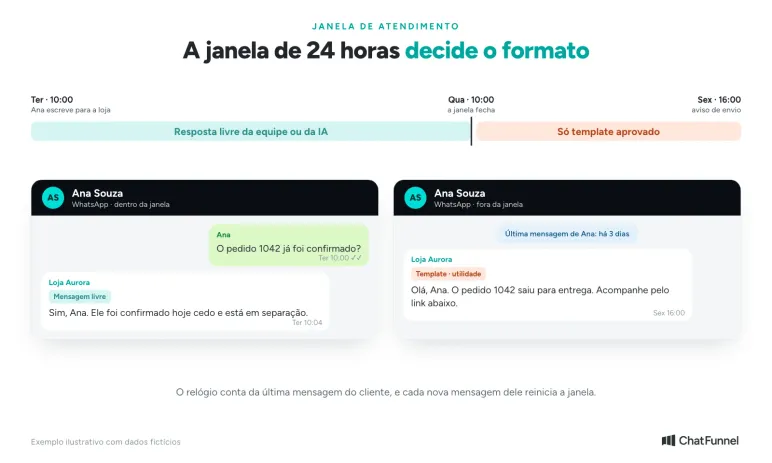
On the official API, you can reply with a free-form message during the 24 hours following the customer's last message. Outside that window, contact requires an approved template. This is the rule described in the WhatsApp Business Messaging Policy.
A customer who has just asked about delivery can therefore receive a regular answer from the team. A notice sent by the store days later must be assessed against the channel window. The clock runs from the customer's message, not the store's last reply.
Since October 1, 2026, Meta also charges for these free-form replies after the first thousand free messages per month per number. The article on service message charges shows how to estimate the impact.
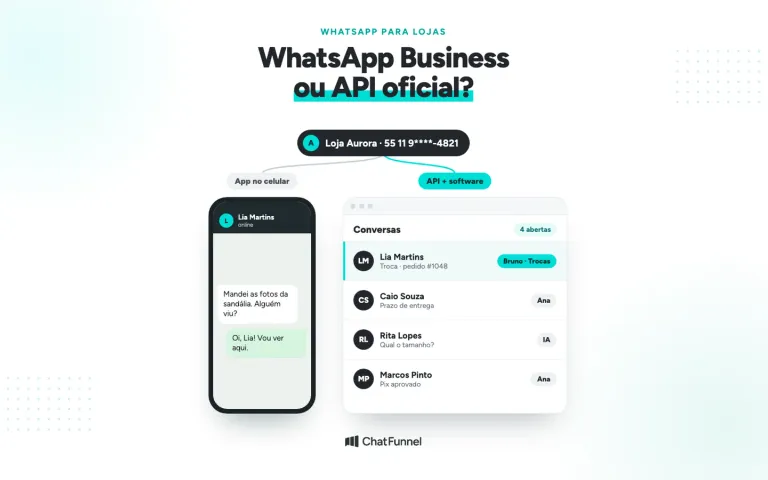
Also check permission to send that type of message. Having the number saved or an approved template does not replace the consent required by WhatsApp's rules. Honor requests to stop receiving messages. If your question starts with choosing a channel, see the difference between WhatsApp Business and the official API.
Choose the category based on the complete content
Meta divides templates into marketing, utility, and authentication. For stores, confusion often arises between an order update and an invitation to buy. The Meta category documentation requires a utility message to have no promotional intent and relate to a specific customer action or request, except for essential cases covered by the rule.
| Store situation | Category to consider | What to check |
|---|---|---|
| Confirm an order already placed | Utility | Identify the order and state the fact without an offer |
| Communicate a shipping change | Utility | Use the update for that specific order |
| Invite a customer to complete an abandoned cart | Marketing | Meta includes this invitation among its examples of commercial follow-up |
| Announce an order and add a coupon for another purchase | Marketing | Mixing promotion with an update changes the classification |
| Send an identity verification code | Authentication | Use the format specific to that category |
This table guides the choice. Meta considers the entire message, including components and examples, and may assign a different category based on the content submitted.
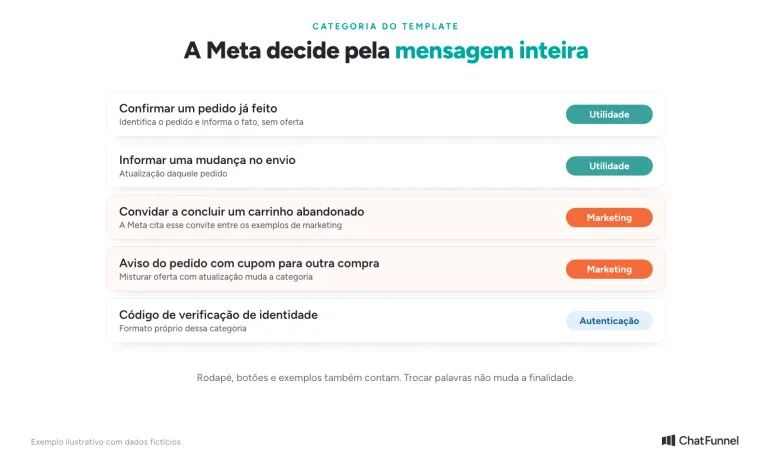
Consider two fictional examples from Loja Aurora. "Your order 1042 has been confirmed. We will notify you when shipping begins" follows an existing purchase. "You left items in your cart. Visit the store to complete your purchase" encourages a commercial action. Removing words such as discount or promotion from the second text does not change its purpose. For delivery updates, the guide to order status on WhatsApp shows which data to check.
Do not try to classify an abandoned cart as utility simply because the customer placed products on the site. The documentation lists this case under marketing. To design the sequence after that decision, see the WhatsApp cart recovery flow.
Build the text using data with a known source
Before filling out the editor, write down the event that triggers the message. For example: "order confirmed by the store." Then define which data goes into the text and where it comes from. This prevents registering a template that looks correct in the preview but receives the wrong order when automation starts.
A fictional draft for an order update might be:
Hello, {{1}}. Loja Aurora has confirmed order {{2}}. We will notify you here when shipping begins. If you need help, reply to this message.
In the examples submitted for review, {{1}} could be "Ana" and {{2}}, "1042". These are illustrative values. When sent to a customer, each variable must receive the value for the corresponding contact and order.
The Meta template review guidance requires samples when variables are present. It also identifies problems such as incorrect braces, an incomplete numeric sequence, and too many variables relative to fixed text. For positional parameters, use {{1}}, {{2}} and so on without skipping positions. The template should not start or end with a standalone parameter.
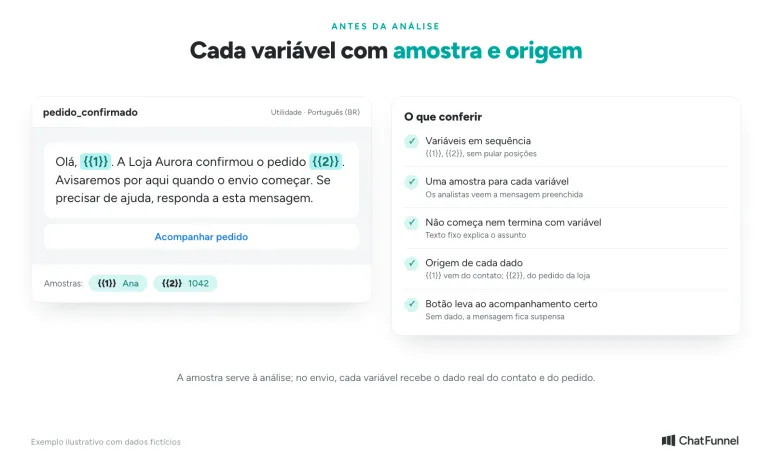
If there is a button, check the address it opens and what the person finds there. An order tracking button should lead to the correct tracking information. If data is missing, the flow should suspend that message and send the issue to the team rather than send an empty link.
Choose the content language and review the filled-in preview. Also read the footer and header when present. An offer hidden in another component is still part of the message.
Submit for review and monitor the correct status
Once the template is ready, select the correct WhatsApp account in the dashboard, check the category, and submit it for review. Save the template name, language, and returned identifier. These help locate the same version later, especially when the business uses more than one account.
Meta says its decision can take up to 24 hours. Monitor WhatsApp Manager and the notification associated with the template. In ChatFunnel, the approved template appears synced and can be selected for sending. This time frame describes the platform's process; it does not guarantee your text will be approved. If the stated period passes without a decision, check account notices and contact support with the template ID.
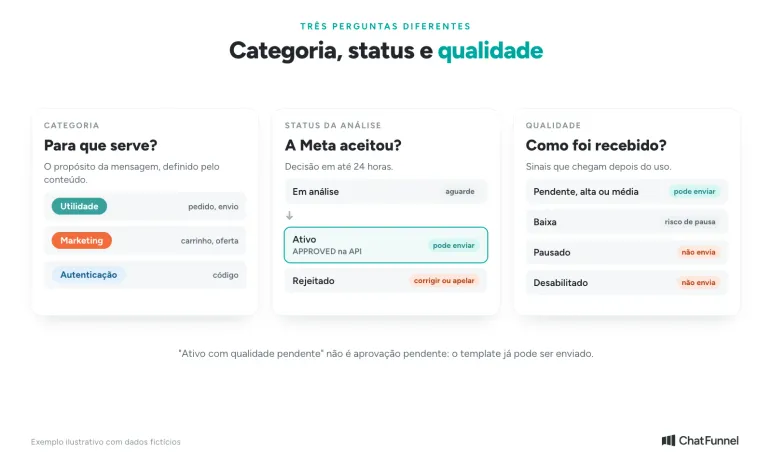
Category and status answer different questions. Marketing indicates the message's purpose. Approved indicates the review outcome. Quality reflects signals received after use.
In the API, APPROVED indicates approval. In WhatsApp Manager, a newly approved template may appear as active with quality pending. This means quality data is not yet available; the text is not still awaiting approval. Paused or disabled templates cannot be sent. The Meta status documentation explains these differences.
If rejected, correct the stated reason
Open the notification before changing the text. Renaming the same template and trying again may repeat the problem. Meta also lists duplicate content among its rejection reasons.
| Reason or situation | Next action |
|---|---|
| Incompatible category | Compare the purpose with the rules. Adjust the category or remove a passage that does not belong in the message |
| Variables without context or samples | Provide examples and let the fixed text explain the subject |
| Duplicate content | Find the existing template and check its name and language before creating another |
| Policy violation | Read the reason and correct the indicated passage before resubmitting |
| Disagreement with the decision | Use the review path available in WhatsApp Manager, with samples and context |
A category rejection and a formatting failure require different adjustments. If the store intends to offer a product, preserving that purpose and choosing marketing may be appropriate. Changing a few words to disguise the offer does not resolve the classification.
After editing, submit the template for review again and check the new status. Do not assume approval of an earlier version automatically applies to modified content. Editing and review paths are covered in the categorization documentation.
Test the send before activating the store sequence
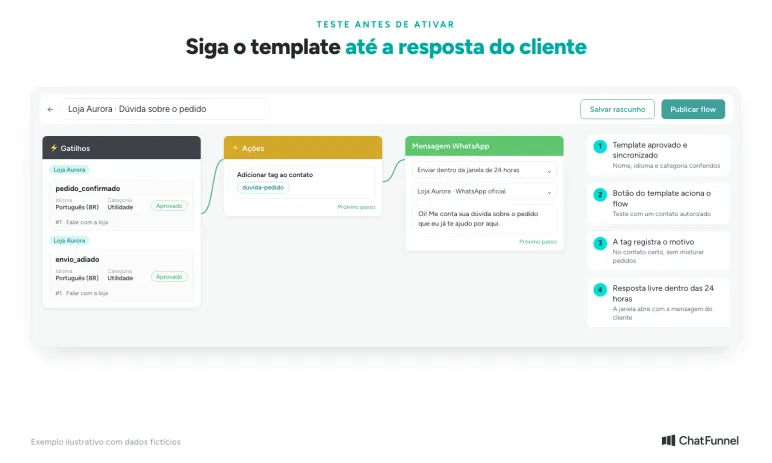
Template approval completes one step. You still need to check whether the automation selects the right customer and fills in data without mixing up purchases. Use an authorized test contact and a fictional order clearly separated from the customer database.
Check the template name and language, displayed values, and button destinations. Reply to the message to verify who receives the conversation: the team or the AI configured for that interaction. Record the send result too; acceptance of the request does not prove the customer received or read the message.
In a cart recovery flow, test the exception before expanding the audience. If a purchase is confirmed while the next reminder waits in the queue, the sequence should stop. The system needs to receive that event and check the situation before the next send. An old abandonment tag alone does not demonstrate that the purchase is still pending.
Also test a request to stop receiving messages. Confirm that the contact is excluded from the relevant sends. Correct category, a sendable status, verified data, and a tested reply make for a more useful check than looking only at the approval badge.
Start with a template your team can check
Approval only says Meta accepted that text in that category. A successful send depends on the rest of the path: the right reason, data from known sources, a sendable status, and a test with a reply. Start with a message whose purpose the team knows and whose data it can check, such as an order confirmation. After testing the send and reply, monitor errors and customer requests before creating the next template. If you need to plan AI's role after that first message, see the AI applications for ecommerce.
In ChatFunnel, a Meta-approved template appears synced and ready to send through official WhatsApp, and the campaign shows sends, deliveries, reads, and errors. Flows react to messages, tags, and CRM changes, wait, check conditions, and route the conversation to AI or the team. In cart recovery, the sequence stops after purchase confirmation, provided the store connection reports that event. Bring your first template to the demo and see how it fits into your store's routine.
Meet ChatFunnel, the #1 AI for online stores
Frequently asked questions about WhatsApp templates
What is a WhatsApp template?
It is a message with fixed text and variables that a business registers and submits for Meta approval before using it on the official API. It lets the business start a conversation or contact a customer outside the 24-hour window. Each template has a name, language, and category: marketing, utility, or authentication.
When do I need to use a WhatsApp template?
Whenever the store starts the conversation or writes more than 24 hours after the customer's last message. Within that window, the team or AI can reply with a free-form message. The period runs from the customer's message, and every new customer message restarts the window.
How long does Meta take to approve a template?
Meta says the decision can take up to 24 hours, with notice in WhatsApp Manager and by email. This is the review time and does not guarantee approval: text with a problem is rejected. An appeal of a rejection is also expected to receive a decision within 24 hours.
How can I get a template approved as utility by Meta?
The content must be non-promotional and tied to a specific customer action or request, such as an order confirmation or shipping change. Remove offers, coupons, and invitations to buy from every component, including the footer and buttons. If the goal is to sell, marketing is the correct category, and changing words does not alter that.
Can an abandoned cart template be utility?
No. Meta's category documentation lists cart reminders as marketing examples because the message invites the customer to complete a purchase. A utility template containing this content may be rejected or reclassified as marketing by Meta.
Why was my WhatsApp template rejected?
According to Meta, common reasons include an incompatible category, variables out of sequence or without samples, text that starts or ends with a variable, duplicate content, and policy violations. The reason appears in Business Support Home and in email to administrators. Correct the indicated issue before resubmitting or appealing.
How much does it cost to send a WhatsApp template?
Meta charges per delivered message, with a rate that varies by category and recipient country, according to Meta's pricing table. Marketing, utility, and authentication have their own rates. Since October 1, 2026, free-form replies within the window are also charged after the first thousand per month per number.