

Automated message templates are prepared texts your store sends on WhatsApp when something happens: a customer writes, business hours end, Pix remains pending, or an order ships.
Below are 30 examples of automated replies and customer service messages for online stores, with the right moment to use each and precautions to avoid bothering customers.
Before copying, distinguish 3 things. The first is the WhatsApp Business app's automated message (greeting and away message). The second is automation or an AI agent through the API. The third is a Meta-approved template, used only when the 24-hour window closes. The next table shows the difference.
These examples were created for a fictional store. Replace the fields in brackets and check whether your system recognizes the specified event. They are not Meta-approved templates or results from actual campaigns. For channel requirements, see the official WhatsApp API guide.
If your team answers the same questions all day, consider ChatFunnel. Flows send a message when an event occurs using order data from the connected store. The team takes over when a conversation needs a person.
Types of automated WhatsApp messages: which to use in each case
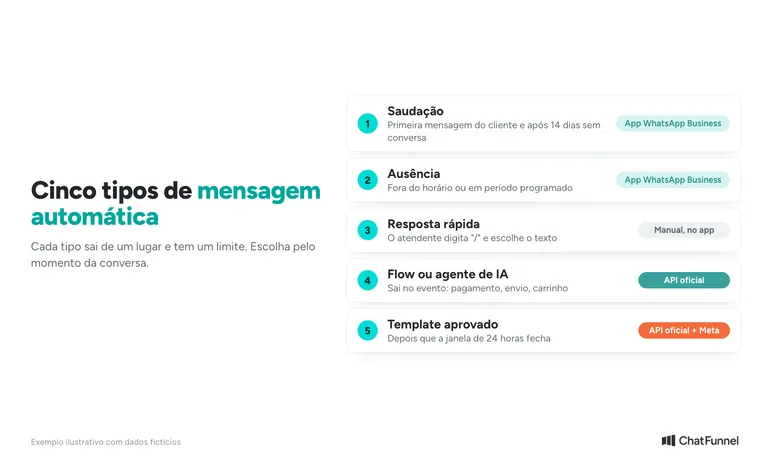
There are 5 message types a store can send without typing at the moment. Each comes from a different place and has its own limit.
| Type | When it is sent | Where it is configured | Main limit |
|---|---|---|---|
| Greeting message | On a customer's first message and after 14 days without conversation | WhatsApp Business app | Fixed text only; the phone must be connected |
| Away message | When a customer writes outside business hours or during a defined period | WhatsApp Business app | Simple schedules and recipients; does not read the order |
| Quick reply | When an agent types "/" and selects text | WhatsApp Business app | Does not send itself |
| Automation (flow) or AI agent | On an event: message, payment, shipment, cart | Official API in a tool such as ChatFunnel | Requires a number connected to the API |
| Meta-approved template | When the 24-hour window has closed | Official API | Requires approval and is charged per message |
Source for greeting and away message rules: WhatsApp Help Center, consulted on October 11, 2026 (greeting and away).
Where automated messages fit in the customer journey
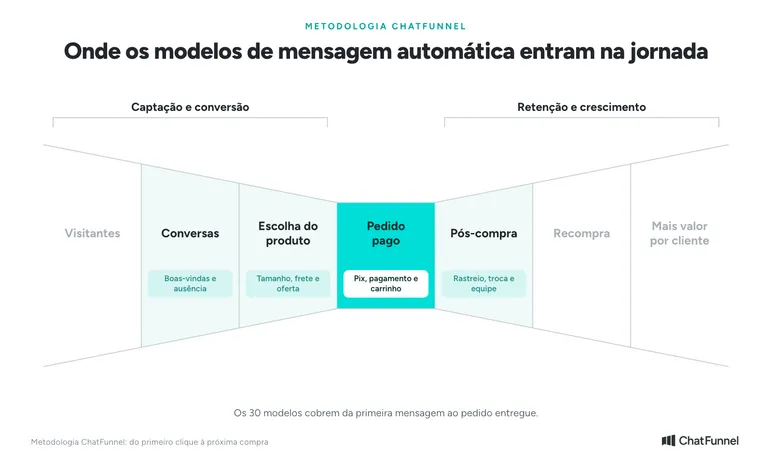
In ChatFunnel, automated messages act in almost every stage. In Acquisition and conversion, they welcome arrivals in Conversations, help with Product Selection, and accompany customers to Paid Order. In Retention and growth, they handle Post-purchase, prompt Repurchase, and help generate More Value per Customer. Only Visitors is excluded because it depends on ads, search, and social media.
How to create automated WhatsApp messages that get replies
Choose 1 question per stage and request only information needed to continue. Offer short options people can answer with 1 word or number. Before sending, check whether they already replied, completed the order, or requested contact to stop.
If the store uses ChatFunnel, the tutorial for creating the first automation flow explains the trigger, message, and condition step by step.
Welcome and first-contact message templates
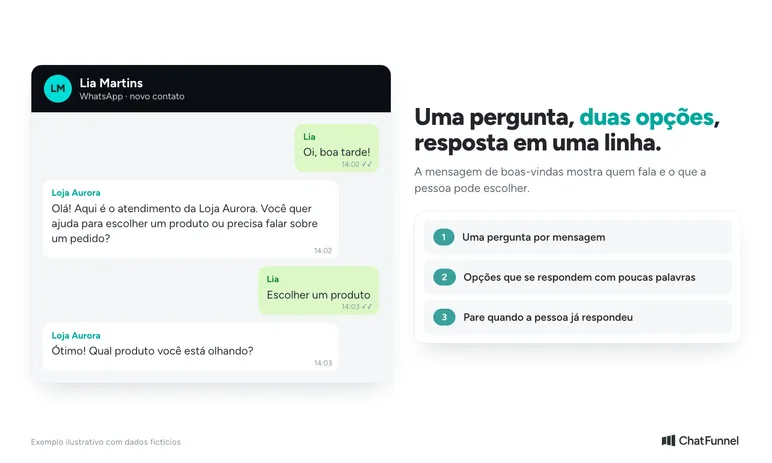
A WhatsApp welcome message introduces the business, says how it can help, and asks a question the person can answer quickly. The 4 templates below serve customer entry. To understand why the first reply matters, see how to increase first-contact response rate.
1. Welcome message with a useful question
Hello! This is [Loja] customer service. Would you like help choosing a product or do you need to discuss an order?
Use at the start of a conversation. If answers trigger routing, check that options lead to the right queues. Someone who already explained the problem should not receive the same question again.
2. Message to identify the subject
To route your conversation: would you like to track a delivery, request an exchange, or ask another question?
Use when the reason is unclear. If the person chooses an exchange, deliver context to that team's queue. The question should reduce work, not create a menu with no exit.
3. Message after an ad entry
Hello! You came from the [produto] ad. Would you like to see the size chart or ask a question before choosing?
Use when contact source is identified. Do not infer the product from any profile visit. If the campaign ended, update the message and links.
4. Reply to someone returning to the conversation
Good to hear from you, [nome]. Would you like to continue discussing [assunto anterior] or do you need something else?
Use after the customer resumes contact and only when history is linked to the correct person. Without confirmation, ask about the subject without mentioning an earlier conversation.
WhatsApp away messages: templates for outside business hours
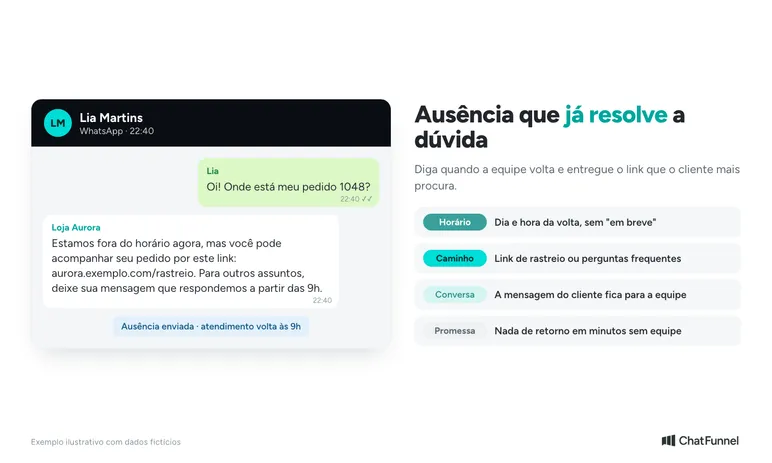
An away message tells customers the team is unavailable and when service will resume. 4 situations cover most needs: end of day, self-service, a holiday, and extended absence.
5. Automated reply outside business hours
We received your message. Our hours are [dias e horários]. Your conversation will stay here for the team to continue during the next business period.
Use only with current hours. Do not promise a reply within minutes when no team is available. The app's away message supports schedule and recipient settings.
6. Away message with self-service
We're outside business hours right now, but you can track your order here: [link de rastreio]. For other matters, leave a message and we'll reply from [hora].
Use when the store has an updated tracking or FAQ page. The link resolves the common question without waiting for business hours.
7. Holiday or closure away message
Hi! [Loja] is closed today for the holiday. We'll return [dia] at [hora]. Your order remains on schedule and you can track it here: [link de rastreio].
Use only when the team is actually off and remove the message on the first business day. State the return day and time rather than "soon".
8. Extended absence or company vacation
We're on company vacation from [data] to [data]. Messages received during this period will be answered from [data de retorno]. Orders already paid continue to be [separados/enviados] within the stated timeframe.
Use only if the order information is true. If the store stops shipping, state that clearly and give the restart date.
ChatFunnel users can define days and hours when the AI agent responds. The AI agent service window tutorial explains setup: outside the defined period, the agent does not respond automatically.
Where to configure these templates in WhatsApp Business
Welcome and away templates are configured under Tools in the WhatsApp Business app as greeting and away messages. Steps for enabling, scheduling, and disabling them, and what changes when Meta AI is enabled, appear in how to make WhatsApp Business respond automatically.
Pre-purchase automated message examples: size, shipping, and offer
Before buying, customers want measurements, timing, and terms. Automated messages answer the basics and call the team for specific questions.
9. Size or measurement question
To recommend the right size, tell me your height and the size you usually wear in [tipo de peça]. The full chart is here: [link].
Ask only for data the store's chart can use. If the product sheet lacks the measurement, send the question to the team rather than guessing.
10. Shipping time and price
Shipping depends on your postal code. Send it to me and I'll give you the time and price for [produto].
Use when the tool can calculate shipping or the team responds next. A focused question is more likely to get a reply than "how can I help?"
11. Delivery of requested material
Here is the care guide you requested: [link do material]. If you wish, tell me which product you bought so we can find the relevant guidance.
Use after the contact requests it. Delivering a requested guide does not authorize including that person in every future campaign. Meta explains user controls for business conversations in its business messaging guidance.
12. Notice that a real offer is ending
The [oferta] offer ends on [data e horário]. The terms are here: [link]. Would you like to clarify anything before deciding?
Use only with verifiable dates and conditions. Remove the message when the offer ends. Do not invent limited stock, reservations, or countdowns.
Automated order and payment messages: Pix, declined payment, and approval
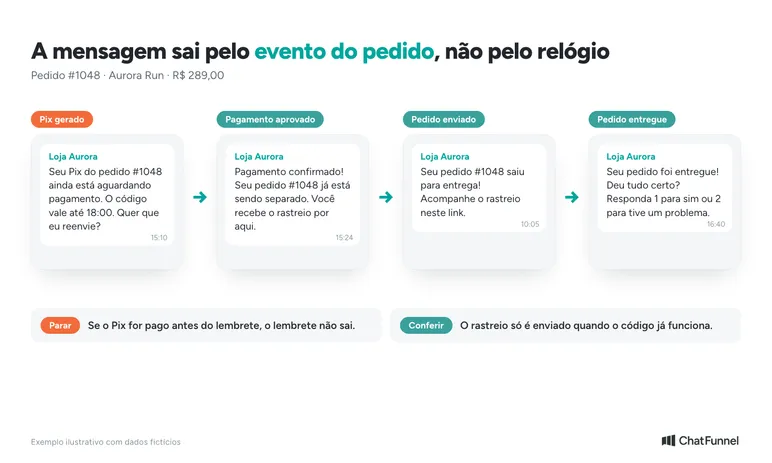
These messages go out when store order status changes. Sending on a fixed schedule is the most common mistake: someone who already paid receives a payment request.
13. Pix generated and not yet paid
Your Pix for order [número] is still awaiting payment. The code is valid until [horário]. Would you like me to resend it?
Trigger from store order status, not a fixed time. If payment is confirmed before sending, cancel the message. The pending Pix on WhatsApp guide details intervals.
14. Payment not approved
Payment for order [número] was not approved. Your cart remains saved. Would you like to try another payment method or speak to the team?
Use when the store receives a declined-payment status. Do not state the reason for decline, because the card operator knows it. Offer another payment method or a person.
15. Payment approved
Payment confirmed! Your order [número] is being prepared. You'll receive the tracking code here as soon as it ships.
Use only after the approved-payment event. Sharing the next step reduces "what now?" questions in the following days.
Automated delivery and order tracking messages
After payment, most questions are "where is my order?" These 3 messages answer before the question arrives.
16. Order shipped with tracking
Your order [número] has shipped! Tracking code: [código]. Track it here: [link].
Check that the code is active with the carrier before sending. A link that does not yet work creates the same question the message was meant to prevent.
17. Delay notice
Your order [número] is delayed with the carrier. The new estimate is [data]. If you need another solution, let me know and I'll pass it to the team.
Notifying before the customer asks shows control. Offer a path to a person, because delay often becomes a complaint when unanswered. The guide to AI order status on WhatsApp shows how to answer with actual order data.
18. Confirmation after delivery
Your order was delivered! Did everything arrive correctly? Reply 1 for "yes" or 2 for "I had a problem".
With 2 options, replies are quick and the store discovers problems before they become public complaints. Anyone replying 2 should go directly to the team.
Automated messages for exchanges, unanswered questions, and human handoff
Here automation organizes the conversation and passes it to a person. The goal is to prevent the customer from repeating what they already said.
19. Exchange request
I'm sorry the product didn't fit. To open the exchange, send me the order number and reason: size, defect, or other.
Ask at once for everything the team needs to proceed. Defects and incorrect charges deserve routing priority.
20. Exchange authorized with next instructions
Your exchange for order [número] was approved. Send the product by [data] via [forma de envio]. We'll notify you here when it arrives.
Use only after the team approves the exchange. State the store's rule without inventing a deadline or shipping cost.
21. Message when automation did not understand
I didn't quite understand. Is this about an order, exchange, or product? If you prefer, I'll call a team member.
Use as a second attempt, never a third repetition. After 2 unexpected replies, transfer to a person.
22. Routing to a team member
I'll send your conversation to the [área] team along with what you've already explained. Service hours are [horário].
Use after confirming the routing actually happens. If transfer fails, state an available alternative. The article on when AI should transfer customer service to a person explains the criteria.
23. Follow-up on a conversation without a reply
Hi, [nome]. Do you still need help with [assunto informado]? If it is resolved, please let us know so we can close this here.
Use when there is a known issue and contact is permitted. 15 minutes is not a universal rule: set the wait according to subject and operations. Stop if there is a reply, resolution, or opt-out request.
24. Closing a conversation for inactivity
Since we haven't received a reply, we'll close this conversation here. If you need help, just write again and we'll resume.
Use after the follow-up in template 23 and only when the store has no outstanding issue with the customer.
Abandoned cart and post-purchase messages: ready-made templates
Post-purchase and cart messages are closest to campaigns, so consent matters more. For more than these templates, see how to build customer loyalty with automated after-sales messages.
25. Abandoned cart reminder
Hi, [nome]! I saw you left [produto] in your cart. Is there a size, shipping, or payment question I can answer?
Use only for people who agreed to receive messages and stop the sequence when purchase is confirmed. The WhatsApp cart recovery guide explains how to set intervals.
26. Thank-you after a sale or service
Thank you for speaking with [Loja], [nome]. If another question about [assunto] comes up, you can continue this conversation.
Use after confirmed completion. For a purchase, wait for approved payment before thanking someone for a paid order. For support, check whether the customer still needs help.
27. Review request after delivery
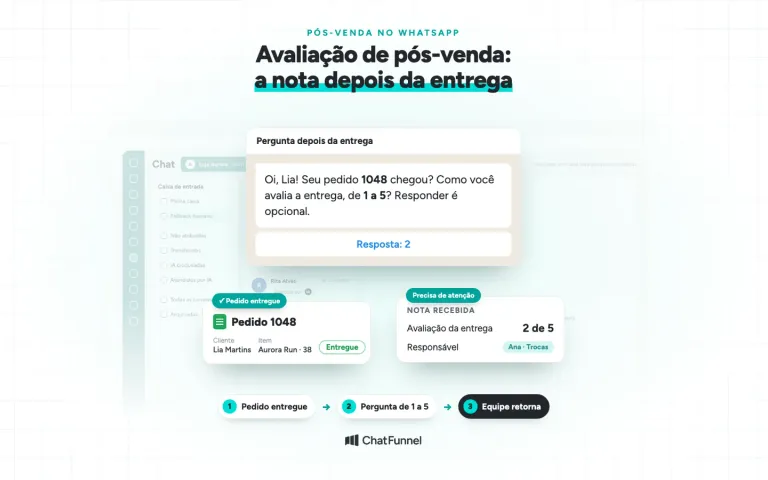
How was your experience with order [número]? Reply from 1 to 5. If you'd like to share more, write after the score. Responding is optional.
Send a few days after confirmed delivery and only once. The WhatsApp satisfaction survey guide explains measurement and low-score handling.
28. Replenishment reminder
Hi, [nome]! It has been [prazo] since your [produto] order. If you'd like to replenish, just reply here and I'll help.
Use only for recurring-consumption products and people who agreed to store messages. A longer reactivation conversation appears in the guide to customer reactivation on WhatsApp.
29. Back-in-stock notice
[produto] in size [tamanho] is back in stock, as you requested. Would you like me to reserve the purchase link?
Use only for people who requested the notice and after checking actual stock. Do not send to someone who never asked.
30. Confirmation for someone who opted out
All set, [nome]. You will no longer receive automated messages from [Loja]. If you need help with an order, just write to us.
Use as soon as the customer writes "parar", "sair", or similar. Honoring the request is required by WhatsApp Business Messaging Policy, and confirmation prevents another complaint.
WhatsApp Business quick replies: how to use these templates
Quick replies are saved messages an agent inserts by typing "/" in the text field. They do not send themselves: they help the team answer repeated questions without retyping. The 30 templates above work as quick replies while the store has not automated every event.
To create one in the WhatsApp Business app:
- Open WhatsApp Business, go to Tools (Business tools in older versions), and tap Quick replies.
- Tap the add button.
- Write the message and define a short shortcut such as /frete or /troca.
- In conversation, type "/" and choose the reply from the list.
Use topic-linked shortcuts the team can remember. Review the list whenever delivery time, exchange policy, or payment method changes. To understand what each app version can automate, see WhatsApp Business or API.
Meta rules for automated messages: 24-hour window, templates, and consent
Through the official API, the store can respond freely up to 24 hours after the customer's last message. After that, it can send only a Meta-approved template. WhatsApp Business Messaging Policy also permits automated responses inside the window. The store must offer a quick path to a person, such as transfer, phone, email, or website support (consulted October 11, 2026 at business.whatsapp.com/policy).
The table shows where each template group works.
| Templates | WhatsApp Business app | API inside the 24-hour window | API after 24 hours |
|---|---|---|---|
| 1 to 4 (welcome) | Only 1 and 2 as greeting | Free-form message | Marketing or utility template |
| 5 to 8 (away) | Yes, as an away message | Free-form message | Not applicable: away replies to someone who just wrote |
| 9 to 12 (pre-purchase) | As a quick reply | Free-form message | Template, generally marketing |
| 13 to 18 (order and delivery) | As a quick reply | Free-form message | Utility template |
| 19 to 24 (exchange and agent) | As a quick reply | Free-form message | Utility template |
| 25 to 30 (cart and post-purchase) | As a quick reply | Free-form message | Template, generally marketing |
Categories follow the 24-hour window tutorial in ChatFunnel's Help Center: marketing for promotion and cart recovery, utility for confirmations and notices. Template creation steps are in how to approve WhatsApp templates in ChatFunnel. For ready-made examples, see WhatsApp templates for stores.
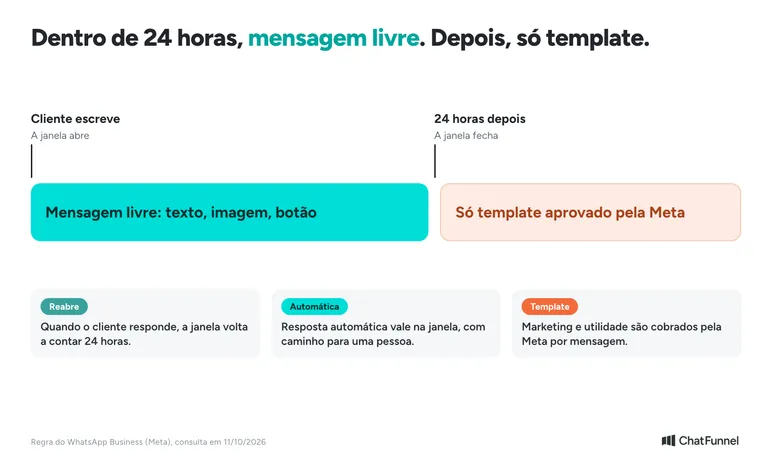
Meta charges per message for templates and, since October 1, 2026, for service messages beyond the free monthly allowance (source: WhatsApp Business Platform pricing, consulted October 11, 2026). The guide to service message charges explains the impact on stores.
Before automating, confirm consent. Meta permits contact only with people who provided their number and agreed to business messages on WhatsApp. It also requires honoring opt-outs.
How to choose the best automated message templates for your store
Start with frequent subjects and review a sample of conversations. Mark where text helped, where customers repeated a question, and where a person was needed. Compare answers within the same service context.
When testing a change, keep other conditions similar. The WhatsApp A/B testing guide explains how to organize this comparison without confusing random variation with proven improvement.
Start with the 3 most frequent moments
You do not need to activate all 30 templates at once. Choose the 3 moments generating the most repeated messages in your store, generally welcome, order status, and exchanges. Check that each text goes out at the right time and only to people who still need it.
The rest can start as team quick replies and become automation later. Greeting and away messages handle entry. Anything depending on an order needs a tool connected to the store.
ChatFunnel helps move from copied text to a working flow. With the store connected (VTEX, Loja Integrada, Nuvemshop, Tray, WooCommerce, Shopify, or Yampi), flows send the right WhatsApp message on payment, shipment, or cart abandonment.
AI answers questions at any time from the knowledge base reviewed by your team. When needed, the conversation transfers to a person with full history. Cost has 2 parts: the platform, which already includes AI, and messages charged by Meta.
Schedule a demo and see these messages sent at the right time in practice
Frequently asked questions about automated WhatsApp messages
What is an automated WhatsApp message?
It is a message sent without someone typing at the moment, triggered by an event: a contact arriving, an out-of-hours time, or an order change. WhatsApp Business's native automated messages are greeting and away messages. With the official API and an automation tool, stores also trigger messages from online store events.
What types of automated WhatsApp messages are there?
Common types are greeting, away, event-triggered automation or AI agent, and Meta-approved template. Quick replies are a customer service tool but do not send themselves. The table at the start shows where each type is configured.
What should I write in a WhatsApp away message?
State service hours, say the conversation will not be lost, and if possible offer self-service such as a tracking link. Avoid promising a quick reply when nobody is available. Templates 5 to 8 cover business hours, holidays, and vacations.
What is the difference between a quick reply, automated reply, and automated message?
A quick reply is saved text an agent inserts by typing "/". An automated reply or message sends itself when something happens. Both can be used: automation for predictable events and quick replies to save team time on the rest.
Can an automated WhatsApp message be blocked?
Yes, if a store sends messages people did not request or expect. Through the official API, messages outside the 24-hour window require Meta-approved templates, and users can block or report a business. Send only to people who opted in and stop the sequence when they request it or complete the purchase.
Chatfunnel | Turning Visitors into Loyal Customers 🩵
Turning Visitors into Loyal Customers 🩵